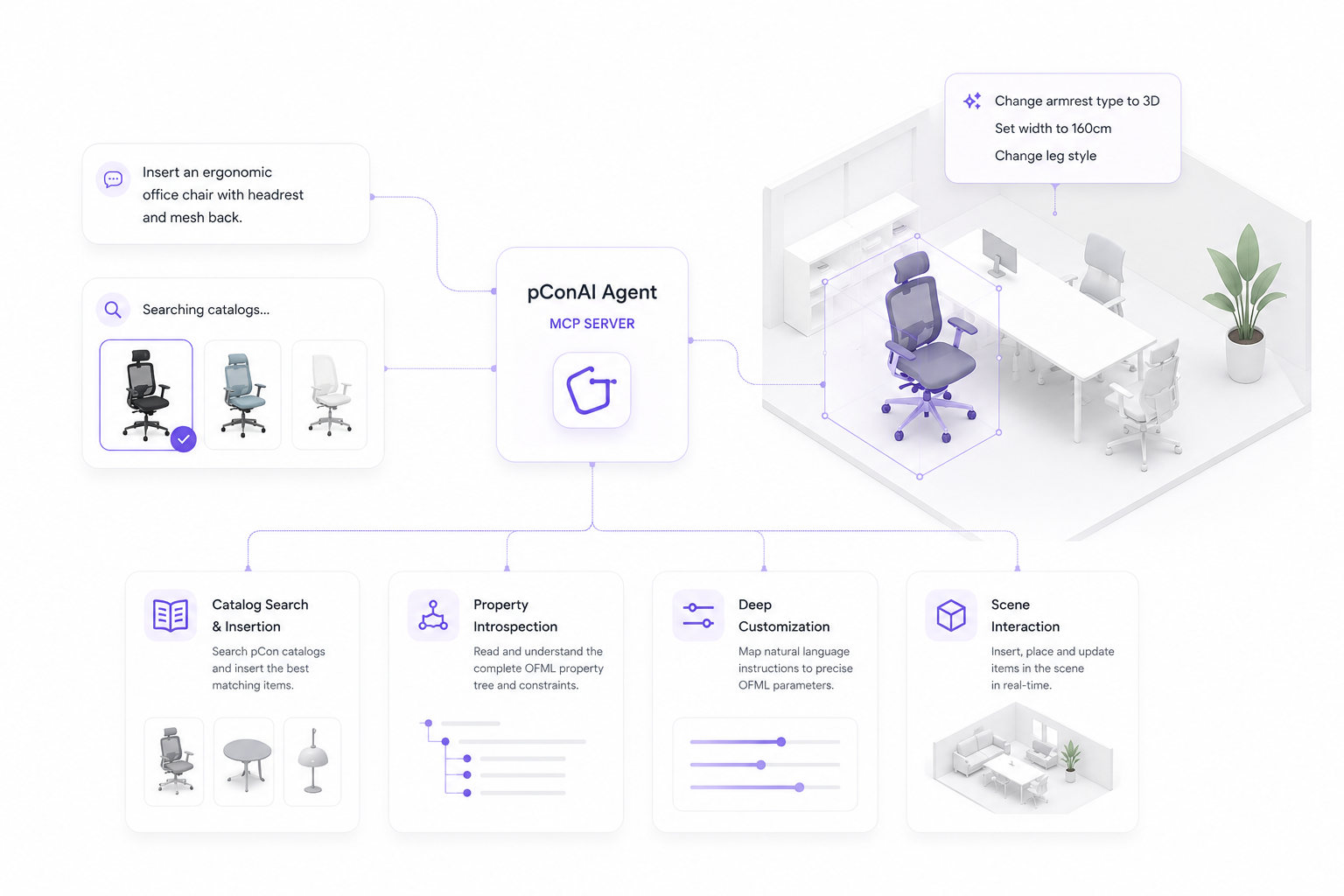
Planner Plugin Pro
The pCon.planner plugin with the MCP server built in. Once installed, opening pCon.planner starts the server; Codex, Claude Code, Claude Desktop or any MCP client then controls the scene.
- Close pCon.planner and run the Setup your administrator gave you.
- Keep Connect Codex and Claude checked: Setup finds Codex, Claude Desktop and Claude Code on the PC and adds the pCon MCP server to each.
- Open pCon.planner, restart Codex or Claude, and ask it to call
pcon_status.
Setup is handed out by your pCon AI administrator; there is no public download. Once installed, the plugin keeps itself up to date from its settings screen. For a client added later run mcp\connect-windows.ps1; from a Mac use mcp/connect-mac.sh (see mcp\SETUP.md).
"mcpServers": {
"pcon": {
"command": "…\\SamplePlugin\\mcp\\PconMcp.exe"
}
}
"pcon": {
"command": "…\\SamplePlugin\\mcp\\PconMcp.exe"
}
}